








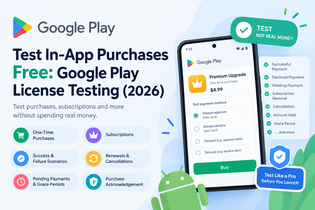
If your Android app uses Google Play Billing for in-app purchases or subscriptions, you should test the complete purchase flow before releasing the app to real users.
The good news is that Google Play provides License Testers and special test payment methods that let developers test purchases without charging real money.
In this guide, you’ll learn what Google Play License Testing is, how to set up a license tester, how to test one-time purchases and subscriptions, how test cards work, and what you should check before launching your app.
What Is Google Play License Testing?
Google Play License Testing is a way for developers to test Google Play Billing using designated tester accounts.
A license tester can use special test payment methods so that purchases can be simulated without the tester being charged like a normal customer.
Google recommends using license testers during development and testing of Google Play Billing integrations. License testers can also bypass certain purchase restrictions, allowing developers to test billing with apps that are sideloaded in some development scenarios, provided the package name matches the app configured in Google Play and the Google Account is registered as a license tester.
This is useful when you need to test:
- One-time in-app purchases
- Subscriptions
- Successful payments
- Declined payments
- Pending payments
- Subscription renewals
- Subscription cancellation
- Grace periods
- Account holds
- Purchase acknowledgement
- Different billing scenarios
Is Google Play License Testing Really Free?
Yes, license testers can use Google’s test payment methods without making a normal real-money purchase.
For example, Google Play provides test payment instruments that can simulate:
- A successful payment
- A declined payment
- A delayed payment that eventually succeeds
- A delayed payment that eventually fails
These test instruments are designed specifically for testing billing behavior.
However, don’t confuse license testing with ordinary purchases.
A normal Google Play user can be charged real money. A tester who is properly configured as a license tester can use the special test payment methods instead.
Who Needs Google Play License Testing?
License testing is especially useful if your app contains:
1. One-Time Purchases
For example:
- Remove Ads
- Premium Upgrade
- Extra Coins
- Additional Features
- Lifetime Access
- Digital Content
2. Subscriptions
For example:
- Monthly subscription
- Annual subscription
- Premium membership
- Cloud storage
- Recurring digital services
3. Different Payment Scenarios
You should test more than just a successful purchase.
Your app should also correctly handle situations such as:
- Payment declined
- Payment pending
- Subscription renewal
- Subscription cancellation
- Account hold
- Grace period
- Purchase acknowledgement
Google’s Billing testing documentation specifically recommends testing these scenarios with license testers and test payment instruments.
How to Set Up a Google Play License Tester
The exact Play Console interface can change over time, but the general process is straightforward.
Step 1: Open Google Play Console
Sign in to your Google Play Console account and select the app you want to test.
Make sure the app is configured in Google Play with the package name used by your Android project.
Step 2: Find License Testing
In Play Console, locate the section for License Testing under your developer account’s testing-related settings.
Add the Google Account that you want to use for testing.
For example:
tester@example.com
Use a Google Account that you can access on your Android test device.
Step 3: Add the Tester Account
Add the tester’s Google Account to your license testers.
The Google account used to make the test purchase must be correctly configured as a license tester.
This is important because simply installing your app on an Android phone does not automatically make an account a license tester.
Step 4: Use the Same Google Account on Your Android Device
The tester account should be available on the Android device being used for the purchase.
Google explains that when multiple Google Accounts are present on a device, the account used for the purchase depends on which account downloaded the app.
Therefore, if you have several Google Accounts on your phone, pay attention to which account installed the test application.
Step 5: Configure Your In-App Products
Before testing, make sure your in-app products or subscriptions are correctly configured in Play Console.
For example:
Product ID:
premium_upgrade

Type:
One-time product

Price:
$4.99
Or:
Product ID:
premium_monthly

Type:
Subscription

Billing period:
Monthly
Your product IDs in the app must match the products configured in Google Play.
Step 6: Test the Purchase Flow
Launch your application and open the screen containing the purchase option.
For example:
Premium Version

Remove Ads
Unlock all features

$4.99

[Buy Now]
Tap the purchase button.
Google Play should open the normal purchase flow.
When using a license tester, Google Play provides test payment options instead of requiring a normal real-money payment. Google notes that test purchases use the same general purchase flow as actual purchases, and the purchase dialog indicates that the transaction is a test purchase.
Can I Test In-App Purchases Without Paying?
Yes.
This is one of the main reasons to use Google Play License Testing.
Instead of entering a real credit card and paying for your own product, use the test payment methods available to license testers.
For example, Google provides test instruments that can:
Always Approve
This simulates a successful payment.
Use it to test:
Purchase initiated
        ↓
Payment succeeds
        ↓
Purchase received
        ↓
Purchase acknowledged
        ↓
Premium content unlocked
Always Decline
This simulates a failed payment.
Your application should show an appropriate error or failure state and should not unlock the purchased content.
Test Subscription Renewals
Subscriptions require additional testing because a successful first purchase doesn’t prove that your subscription implementation works correctly.
You should test:
- Initial subscription
- Renewal
- Failed renewal
- Grace period
- Account hold
- Cancellation
- Recovery
- Expiration
Google provides accelerated subscription testing scenarios for license testers. For example, a monthly test subscription can renew at short intervals so developers don’t have to wait an entire month to test renewal behavior.
This is extremely useful when developing subscription-based Android apps.
Test Failed Payments
Your application should also handle failed payments correctly.
Use the test payment instrument that always declines.
A good implementation should:
- Detect the failed transaction.
- Avoid granting the premium entitlement.
- Display an appropriate message.
- Keep the user’s existing access state correct.
- Allow the user to retry when appropriate.
Don’t simply test the successful payment path.
Payment failure handling is an important part of a production billing implementation.
Test Pending Transactions
Pending transactions are another important scenario.
Google Play provides delayed test payment instruments for license testers.
These can simulate situations where a payment remains pending before eventually being approved or declined.
For example:
Purchase
   ↓
PENDING
   ↓
Wait
   ↓
PURCHASED
Your application should not immediately grant the entitlement while the transaction is still pending.
Instead, your billing implementation should correctly process the purchase when Google Play reports the appropriate purchase state.
Test Purchase Acknowledgement
Purchase acknowledgement is an important part of Google Play Billing.
After a successful purchase, your application needs to process the purchase correctly and acknowledge it according to Google’s Billing requirements.
Google notes that purchases made by license testers are refunded after a short period if the application doesn’t acknowledge them.
This makes license testing useful for discovering acknowledgement problems before your real customers encounter them.
Google Play License Testing vs Closed Testing
These two concepts are often confused.
They are not the same thing.
| Feature | License Testing | Closed Testing |
|---|---|---|
| Main purpose | Test Google Play Billing | Test your app with selected users |
| Tests purchases | Yes | Not specifically |
| Test payment methods | Yes | Not the main purpose |
| Test subscriptions | Yes | Can be used, but billing testing requires appropriate license testers |
| Tester access | License tester accounts | Closed-test users |
| Main focus | Billing functionality | App quality and pre-release testing |
Google Play’s testing tracks include internal, closed and open testing, while license testers are specifically used to test billing functionality.
Is License Testing the Same as the 12 Testers Requirement?
No.
This is an important distinction for developers.
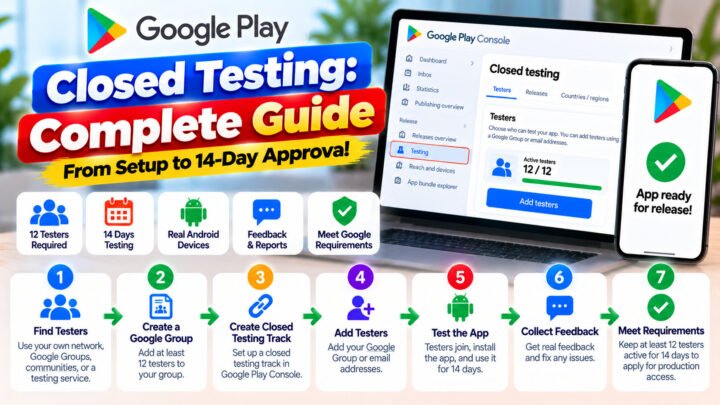
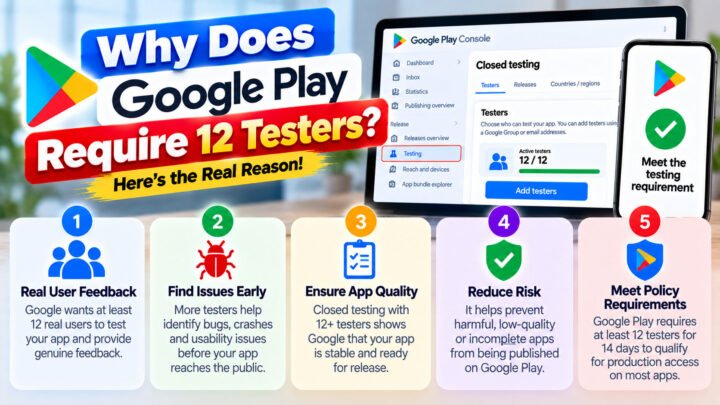
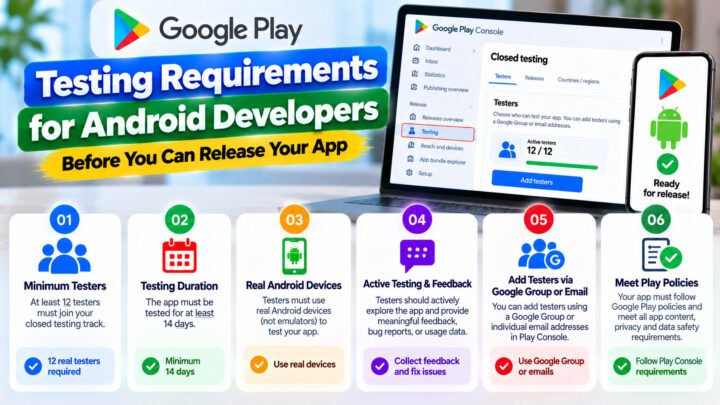
The 12 testers for 14 days requirement applies to certain new personal Google Play developer accounts that must complete a qualifying closed test before applying for production access.
Google currently states that personal developer accounts created after November 13, 2023 must run a closed test with at least 12 testers continuously opted in for at least 14 days before applying for production access.
License testing is different.
It is primarily a mechanism for testing Google Play Billing.
Therefore:
12 Testers / 14 Days
        =
Closed Testing Requirement

License Testers
        =
Google Play Billing Testing
You should not assume that adding a Google Account as a license tester automatically satisfies the 12-tester closed-testing requirement.
Can I Use License Testers in a Closed Test?
Yes.
Google’s documentation explains that users in testing tracks can also be license testers.
This can be useful when you need to test both:
- The pre-release app
- Google Play Billing
However, the tester must still be correctly configured for the testing track and the billing test setup.
Do Test Purchases Affect Real Revenue?
Test purchases are designed for testing and do not represent normal customer revenue.
They should not be treated as genuine production sales.
The purpose is to verify that your application correctly communicates with Google Play Billing and handles purchase states.
Important: Test With Non-License Testers Too
License testers are extremely useful, but Google recommends also testing your application with non-license-tester accounts from time to time, especially after major changes.
This helps identify logic that accidentally works only under testing conditions.
For example, your application might behave correctly with a test subscription renewal but fail with a normal production customer.
Therefore, your final QA process should include both:
License Tester
      +
Normal Test User
      =
More Complete Billing Testing
Google Play Billing Testing Checklist
Before releasing your app, test the following.
One-Time Purchases
- Product loads correctly
- Price displays correctly
- Purchase dialog opens
- Successful test purchase works
- Failed purchase is handled
- Purchase is acknowledged
- Premium entitlement is granted
- Restore/recovery behavior works
- App restart preserves entitlement
Subscriptions
- Subscription purchase works
- Renewal works
- Failed renewal works
- Grace period is handled
- Account hold is handled
- Cancellation is handled
- Subscription expiration is handled
- User access changes correctly
Pending Transactions
- Pending state is detected
- Premium content is not granted prematurely
- Successful pending transaction grants access
- Failed pending transaction is handled
Production Safety
- Test accounts are correctly configured
- Test products are configured correctly
- Product IDs match the app
- Purchase acknowledgement is implemented
- Entitlement logic is verified
- Server-side verification is tested if applicable
- Non-license testing has been performed
Common Google Play License Testing Problems
“I Don’t See the Test Payment Methods”
Check that the Google Account you’re using is correctly configured as a license tester.
Also verify that the account being used on the Android device is the expected account.
“Google Play Is Asking Me to Pay Real Money”
Stop before completing the purchase.
Verify that:
- The account is a license tester.
- The correct Google Account is being used.
- The app/package configuration is correct.
- The device is using the intended tester account.
Do not use a real payment method simply because the test option isn’t appearing.
“My Purchase Works but Premium Content Isn’t Unlocked”
This is usually an application-side billing/entitlement issue rather than simply a Play Console tester issue.
Check:
- Purchase state
- Product ID
- Purchase acknowledgement
- Entitlement logic
- Billing client connection
- Backend purchase verification, if applicable
- Restore purchases logic
“Subscription Doesn’t Renew Immediately”
Don’t expect a real monthly subscription timeline during testing.
Google provides accelerated subscription testing for license testers, allowing developers to simulate renewals much faster than waiting for a real billing period.
What About Apps That Are Not Published Yet?
Google Play Billing testing can also be performed during development.
Google explains that license testers can bypass certain restrictions that normally prevent billing testing for apps that haven’t been fully distributed through Google Play, including certain sideloaded/debug scenarios, provided the package name matches the Play Console configuration and the account is a license tester.
For broader pre-release testing, however, Google Play’s internal and closed testing tracks are useful for distributing your application to selected testers.
Final Takeaway
If your Android application uses Google Play Billing, don’t wait until launch to test purchases.
Use Google Play License Testing to simulate real billing scenarios without relying on normal real-money transactions.
At minimum, test:
- Successful purchases
- Declined purchases
- Pending purchases
- Purchase acknowledgement
- Subscription renewals
- Failed renewals
- Cancellation
- Grace periods
- Account holds
- Entitlement restoration
And remember the distinction:
Google Play License Testing is for testing billing.
Google Play Closed Testing is for testing your app with selected users and, for certain new personal developer accounts, meeting the 12-testers/14-days requirement before applying for production access.
If you’re preparing an app for Google Play and need help with the closed-testing side, you can also learn more about Google Play closed testing and the 12-testers requirement through the related TesterPilot guides.
Frequently Asked Questions
Can I test Google Play in-app purchases for free?
Yes. Google Play provides license testers with test payment methods designed to test billing without normal real-money charges.
What is a Google Play license tester?
A license tester is a Google Account configured for testing Google Play licensing and billing features.
Can I test subscriptions without paying?
Yes. License testers can use Google’s test payment instruments to test subscription purchase and renewal scenarios.
Can I test failed payments?
Yes. Google provides test payment instruments that simulate successful and declined transactions.
Is license testing the same as Google Play closed testing?
No. License testing focuses on Google Play Billing, while closed testing is a Play Console testing track for distributing pre-release apps to selected testers.
Does license testing satisfy the 12 testers for 14 days requirement?
Do not treat them as the same requirement. The 12-testers/14-days requirement concerns a qualifying closed test for certain new personal developer accounts; license testing is a separate billing-testing mechanism.
Can I use a license tester in a closed test?
Yes. Google states that users in testing tracks can also be license testers, provided the relevant testing and billing configurations are set up correctly.
Should I test with a normal account too?
Yes. Google recommends testing with non-license-tester accounts periodically, particularly after significant changes, so that your application isn’t accidentally dependent on test-specific behavior.
Related TesterPilot Guides
- Google Play Closed Testing: Complete Guide
- How to Get 12 Testers for Google Play Closed Testing
- How to Find Testers for Closed Testing
- Google Play 12 Testers for 14 Days Explained
- How to Apply for Google Play Production Access
- Google Play Closed Testing vs Internal Testing