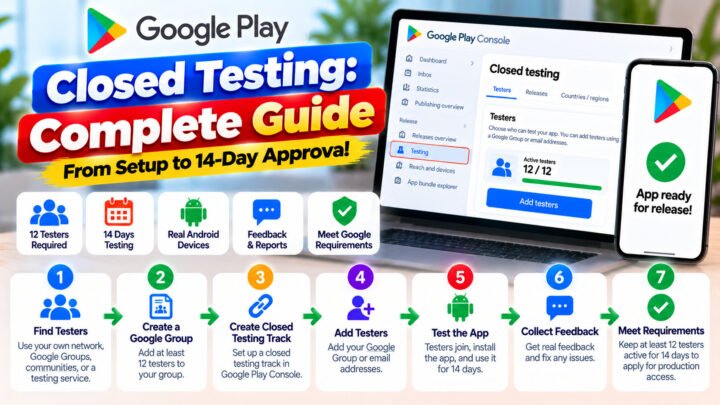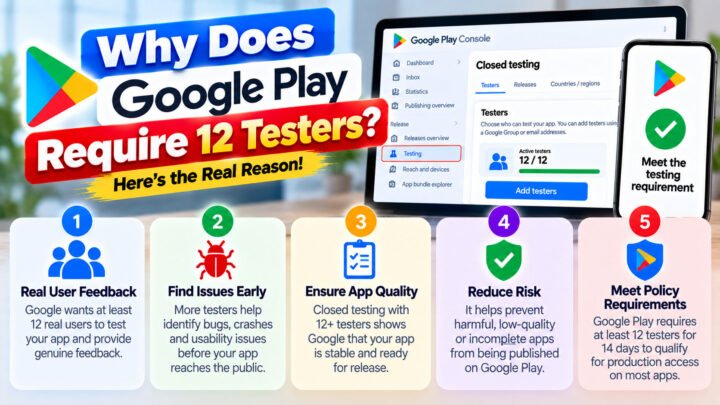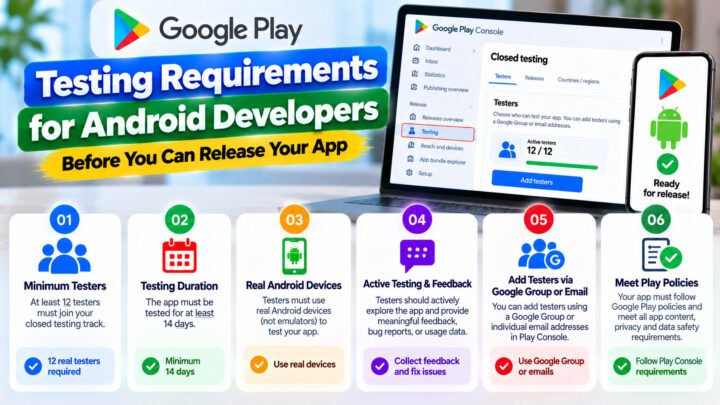









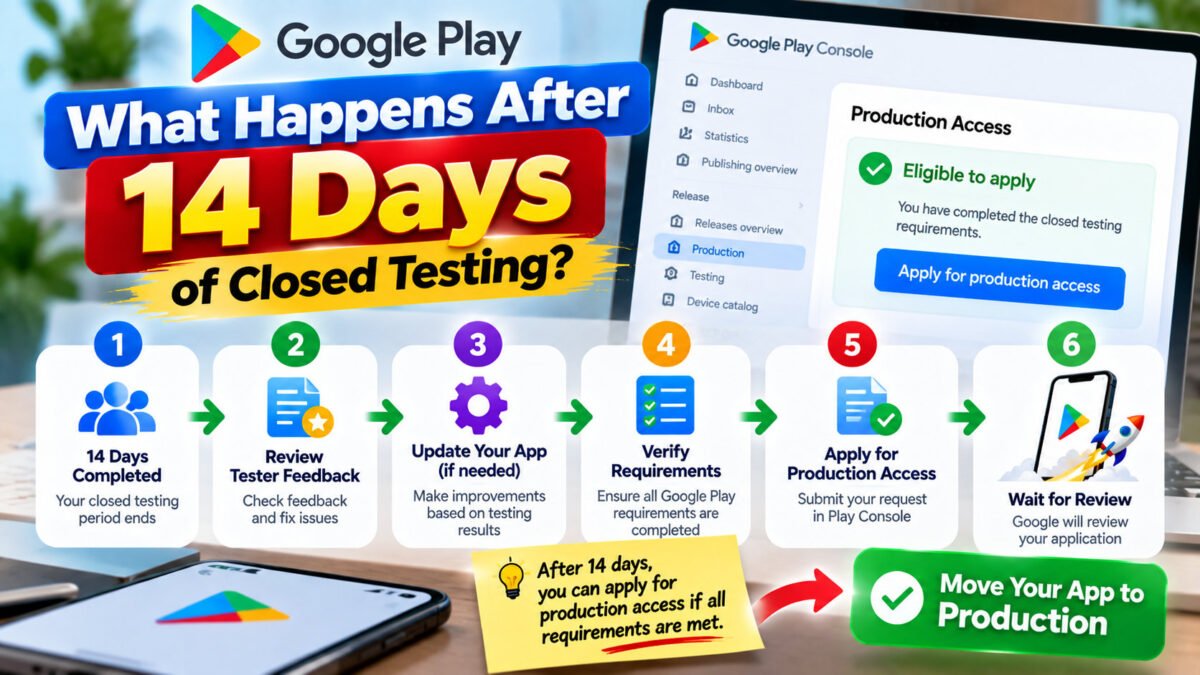
You have hit 12 testers for 14 consecutive days. Nothing dramatic happens — the counter simply becomes satisfied — but from that moment the process changes shape. Here is the sequence, and the two places where people still lose.
1. Confirm the requirement is actually met
Before you click anything, verify in the Closed testing track that:
- the opted-in tester count is at least 12 right now,
- there have been no gaps in the last 14 days,
- the Apply for production access action is available.
Take a screenshot of the track and the tester count. If a review comes back with questions, that screenshot is your evidence.
2. Prepare before you apply
The application is a questionnaire, and it is where the request is actually decided. Before you open it, collect:
- Device and Android coverage. How many distinct models and Android versions your testers used.
- What you found. The bugs and UX problems testing surfaced, in your own words.
- What you changed. Which builds you published and what each one fixed.
- Engagement. Roughly how many testers were active, not just opted in.
- Your store listing, finished. Title, short and full description, 3+ screenshots, feature graphic, content rating, data-safety form.
Vague answers are the number one cause of rejection at this stage. “Testers reported issues and we fixed them” tells the reviewer nothing. “Seven testers reported the login flow failing on Android 13; fixed in build 14” tells them the test was real.
3. Apply for production access
- Closed testing track → Apply for production access.
- Answer the questionnaire honestly and specifically. Do not inflate tester numbers — the data is visible on Google’s side.
- Confirm and submit.
The full walkthrough, including how to phrase each answer, is in How to apply for Google Play production access.
4. The review wait
Review times vary. Many requests are decided within a few days; some take longer. Two rules while you wait:
- Keep the test alive. Do not remove testers, do not unpublish the track, do not let the count drop. If the requirement is no longer satisfied when a reviewer looks, the request can be refused.
- Do not resubmit. Repeated submissions do not speed anything up and can backfire.
5. If it is approved
You get production access. Then:
- Create the production release and upload your final AAB.
- Publish to a staged rollout — 5–10% first is a sane default.
- Keep the closed track alive for a while. It is the fastest place to push a hotfix for a small group.
- Tell your testers. They finished a 14-day job and they are the best source of your first reviews.
6. If it is rejected
Read the reason carefully — it is usually specific. The common causes and fixes:
- Insufficient testing evidence. The numbers were met but engagement was thin. Run a longer test with more active testers on the same track, then reapply.
- Incomplete store listing. Fix the missing screenshots, description sections or content rating and reapply.
- Low-quality or unstable app. Ship the fixes, keep the test running with the same testers, and reapply once the builds are stable.
- Policy or content problems. Address the policy issue itself — this is not a testing problem and cannot be solved by more testers.
You do not have to start from zero. Keep the same track and the same testers, fix the issue, and apply again. Some providers — including TesterPilot — include a free retest precisely because this happens often enough to plan for.
7. What happens to your testers afterwards
Nothing automatic. They stay opted in until you say otherwise, which is why you should send a short closing message: what you found, what you fixed, and thank you. Anyone who completed the full window belongs in a reusable Google Group — your next app needs 12 testers for 14 days too, and experienced testers make that a one-message task.
Keep reading
- The 14-day requirement explained
- Applying for production access
- Google Play closed testing: the complete guide
Need the 14 days run properly so day 15 is straightforward? TesterPilot handles the testers, the daily monitoring and the final report — or message us on WhatsApp with your app details.