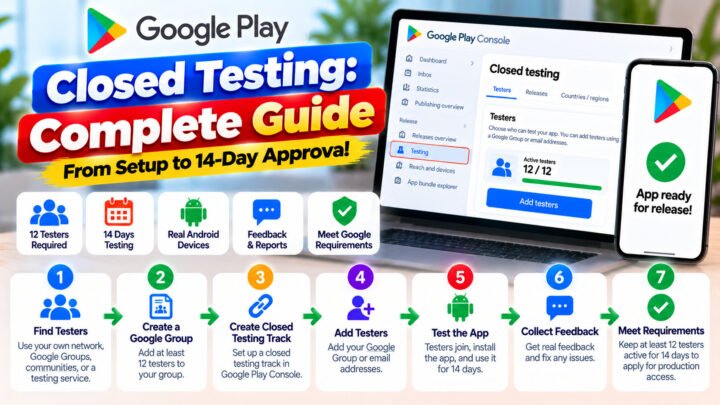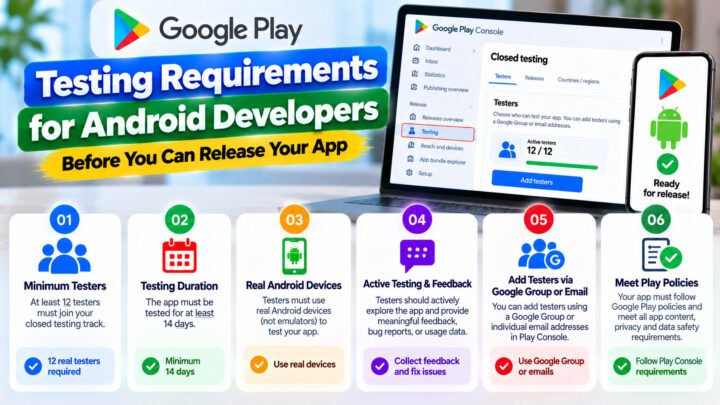









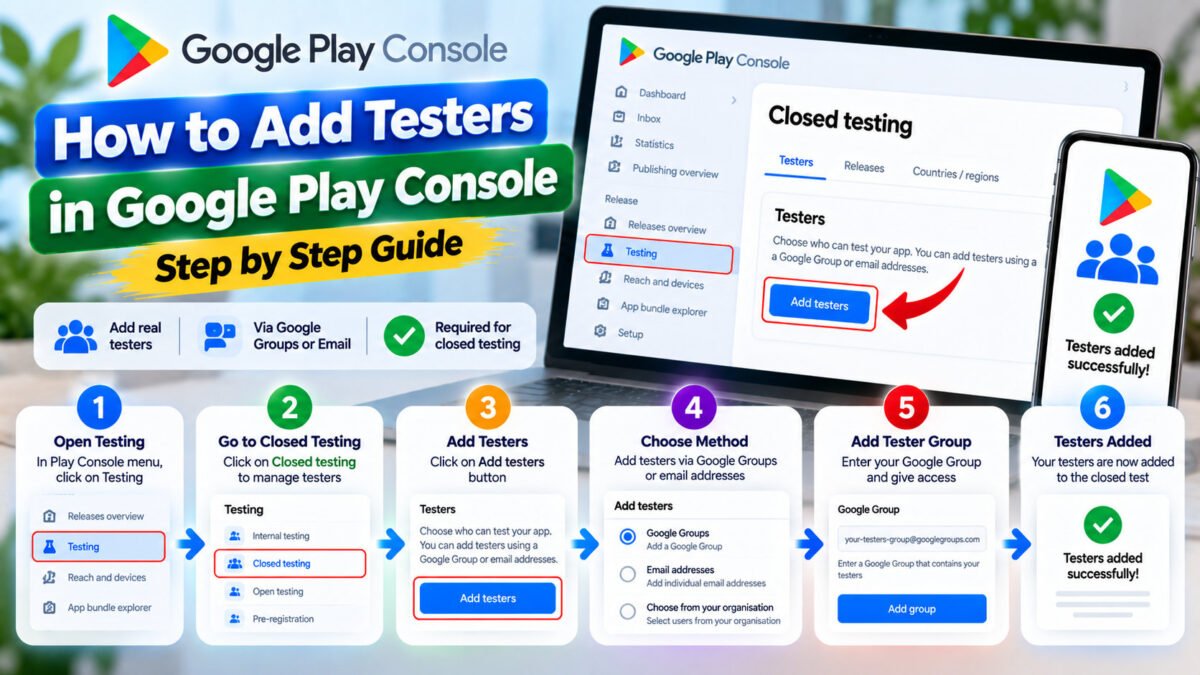
Adding testers to Play Console is a five-minute job that goes wrong in predictable ways. This walkthrough covers both supported methods — email lists and Google Groups — and then the specific mistakes that leave you staring at a tester count that will not go up.
Before you start
- Your app exists in Play Console and you have access to Test and release.
- You have uploaded an AAB to the closed track (or are about to).
- You have the testers’ Google account email addresses. Not their work email, not their Apple ID — the Google account signed in on the Android device they will test with.
Method 1 — Add testers by email list
- Play Console → your app → Test and release → Testing → Closed testing.
- Select the track you want to use (Google creates one called Alpha; you can rename it).
- Open the Testers tab.
- Create a new email list and give it a recognisable name, for example
closed-batch-sept. - Paste the addresses, one per line, and save.
- Copy the opt-in link shown on the same screen.
- Send that link to the testers with clear instructions.
The opt-in link looks like https://play.google.com/apps/testing/<your.package.name>. Anyone who opens it while signed in to a Google account that is on your list can join the test.
Method 2 — Use a Google Group
- Create a Google Group (groups.google.com) — for example
testerpilot-testers@googlegroups.com. - Add your testers as members. Depending on your group settings, you can allow them to join directly via a link.
- In Play Console → Closed testing → Testers, choose the group instead of an email list.
- Save, then share the opt-in link.
Groups are the better long-term choice. Every tester you ever recruit stays in one place, so when you publish your next app — and have to run another 14 days — you add the app to the track and reuse the group.
Play Console caps tester email lists at around 100 addresses. Twelve is a comfortable fraction of that, and leaving room to over-recruit is exactly what you want.
What testers have to do
Send them these steps, in this order. Being explicit prevents most of the support messages you would otherwise receive:
- Open the opt-in link while signed in to the Google account you registered.
- Tap Become a tester.
- Tap the Download it on Google Play link and install the app from the Play Store. Do not install an APK from anywhere else.
- Open the app at least once after installing.
- Do not uninstall it until [date] — leave the test only when you tell them to.
Why your tester count will not move
Almost every “testers added but the count is still zero” problem is one of these:
- Nobody has opted in yet. Adding an email to a list is not opting in. They must open the link and accept.
- Wrong Google account. The tester is signed in to a different account on the device than the one you listed.
- No release published. If you never published the release to the closed track, the opt-in link has nothing to send them to.
- Not installed from Play. Opting in and then installing an APK from elsewhere may not register.
- Email list not saved. Easy to miss — check the Testers tab shows your list as active.
- Emulator or unsupported device. Not a valid test device.
- Propagation delay. Counts can take a few hours to appear. Recheck the next morning before assuming failure.
Housekeeping that saves you later
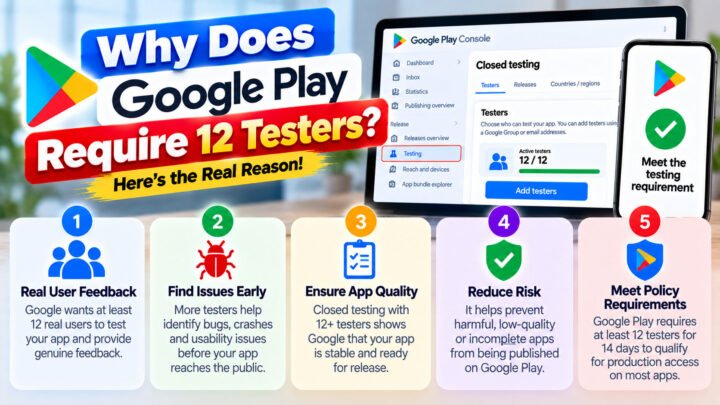
- Add 15–20 testers, not 12. Dropouts are normal and the 14-day counter restarts if you fall below 12. See how the 14 days work.
- Keep a tester spreadsheet. Name, Google account, device, install date, last contact, status. This is the artefact that saves you at day 13.
- Use separate lists per batch. If a group of testers goes inactive, you can retire that list without disturbing the others.
- Reuse your group. Testers who completed a full 14 days are your most reliable asset for the next app.
Removing and replacing testers
To remove someone, take them off the email list or out of the group. Their testing access ends, and if they were one of your 12 the consecutive-day count is affected.
To replace them, add the new address, send the opt-in link, and confirm the install. Update your spreadsheet and check the track’s opted-in count the following day.
Next steps
- How to create a closed testing track
- How to join a closed test — send this to your testers.
- How to get 12 testers
If sourcing and managing the tester list is the bottleneck, TesterPilot supplies 12+ testers who already know the flow and stay opted in for the full window — see how it works or chat on WhatsApp.