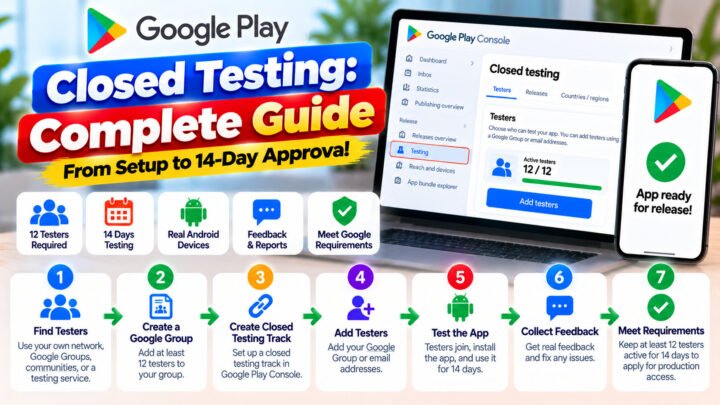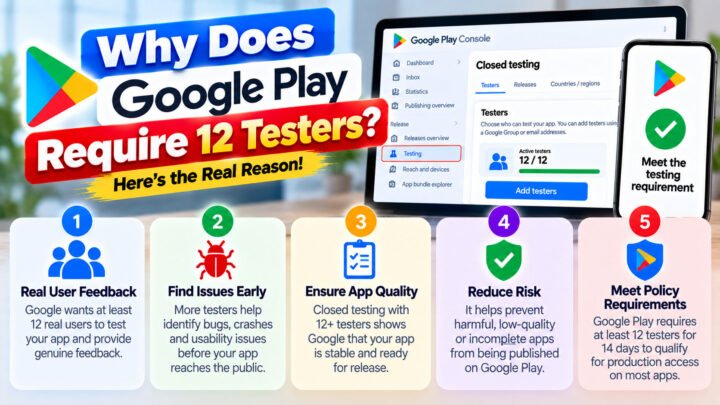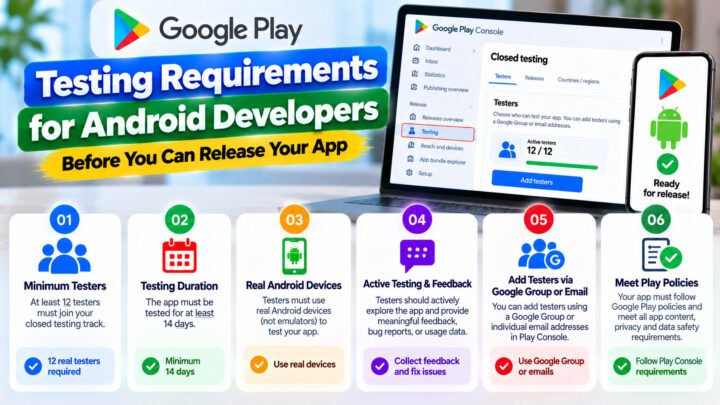









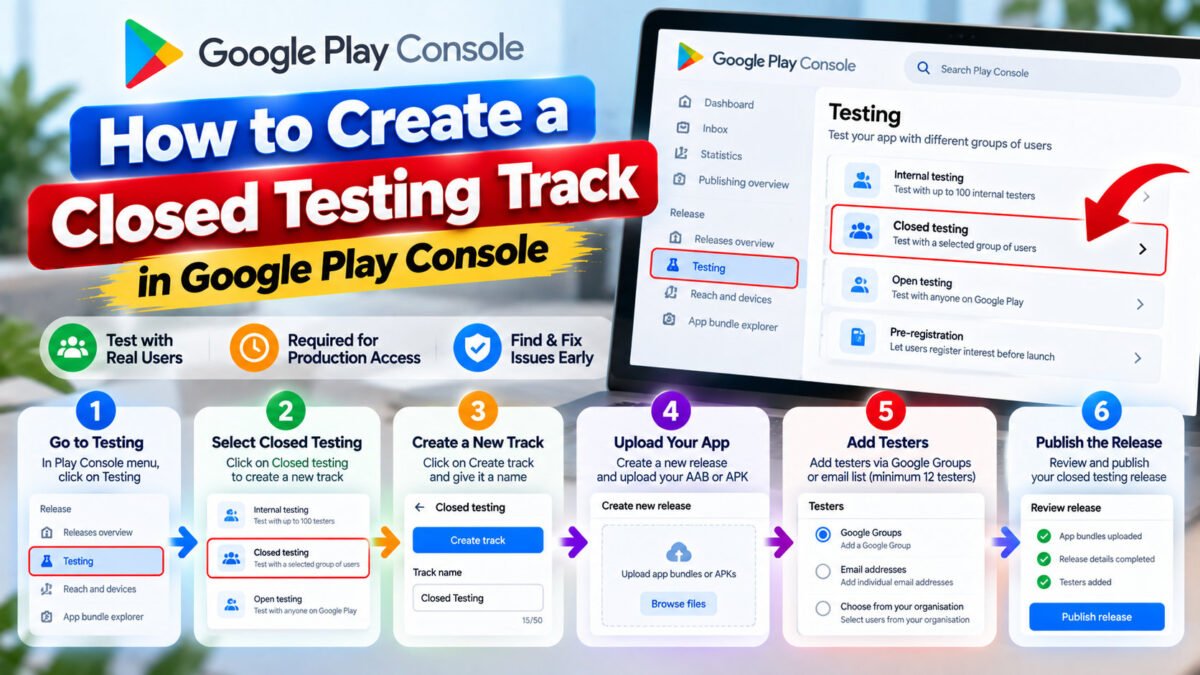
A closed testing track is where your 14-day count actually lives. Set it up carelessly and you will discover the problem two weeks later, when the counter refuses to reach 14 or your testers cannot find the app. Set it up once, properly, and you can reuse the pattern for every app you publish.
What a track is
Inside Play Console, a track is a release channel with its own testers, its own uploaded builds and its own status. Google creates a track called Alpha for closed testing by default. You can rename it, and you can create additional closed tracks — some teams keep a small “internal-ish” closed track and a wider one for the counted test.
Important: only the Closed testing tracks count toward the 12-tester, 14-day requirement. Internal testing does not.
Creating the track
- Play Console → select your app → Test and release → Testing → Closed testing.
- Use the pre-created Alpha track, or choose Create track and name it something meaningful (for example
closed-14day). - Open the Testers tab and attach your testers: an email list or a Google Group. Google Groups scale better across apps.
- Open the Countries / regions tab and add every country your testers are in. A tester in a country that is not included cannot install the app — this is one of the most common silent failures.
- Go back to the track and click Create new release.
- Upload your AAB.
- Write release notes that tell testers what to look at. “Focus: sign-up flow, offline mode, notifications” beats “bug fixes”.
- Review and publish the release. Nothing is testable until the release is published.
- Copy the opt-in link from the Testers tab and verify it on a device that is not yours.
Settings that affect your 14-day count
- Managed publishing. If it is on, your release waits for you to publish manually. Fine, as long as you remember — an unpublished track means testers cannot opt in and the count never starts.
- Countries / regions. Testers must be in an included country. Add them all before you recruit.
- Testers list. Removing a tester from the list or group reduces your opted-in count and can restart the 14 days.
- Staged rollouts. Not needed for a test group this small — publish to 100% of the track.
Do not recreate the track mid-test to fix something. Upload a new release to the same track instead. Recreating can force testers to opt in again, which resets the consecutive-day counter.
A sane track structure for repeated publishing
If you publish more than one app, use this layout:
- Internal testing — your own devices. Smoke-test a build before anyone else sees it.
- Closed testing — the counted test, minimum 12 testers, 14 days, with a buffer of 15–20.
- Optional second closed track — a small group for pre-beta builds before the main closed test.
- Open testing — only if you want public visibility before production.
Reusing the track for your next app
The track itself is per app, but the testers are not. Keep a Google Group of people who have completed a full test for you. On the next app: create the closed track, attach the same group, publish the release, share the opt-in link. Recruitment — the expensive part — collapses to a single message.
Checklist before you invite anyone
- Release published on the closed track (not draft).
- AAB uploaded and processing complete.
- Testers added and visible in the Testers tab.
- All tester countries included.
- Store listing complete: name, descriptions, 3+ screenshots, feature graphic, content rating done.
- Opt-in link tested on a non-developer device.
- 15–20 testers recruited, not 12.
Steps 5 and 6 are where production-access requests are won and lost. An incomplete listing is a rejection reason even when the test itself passed.
Next steps
- How to add testers in Play Console
- How testers join your closed test — send them this.
- What happens after 14 days
Want the testers arranged so 12 stay opted in for the whole window? TesterPilot runs Google Play closed testing campaigns with real testers on real devices — start a campaign or ask us on WhatsApp.