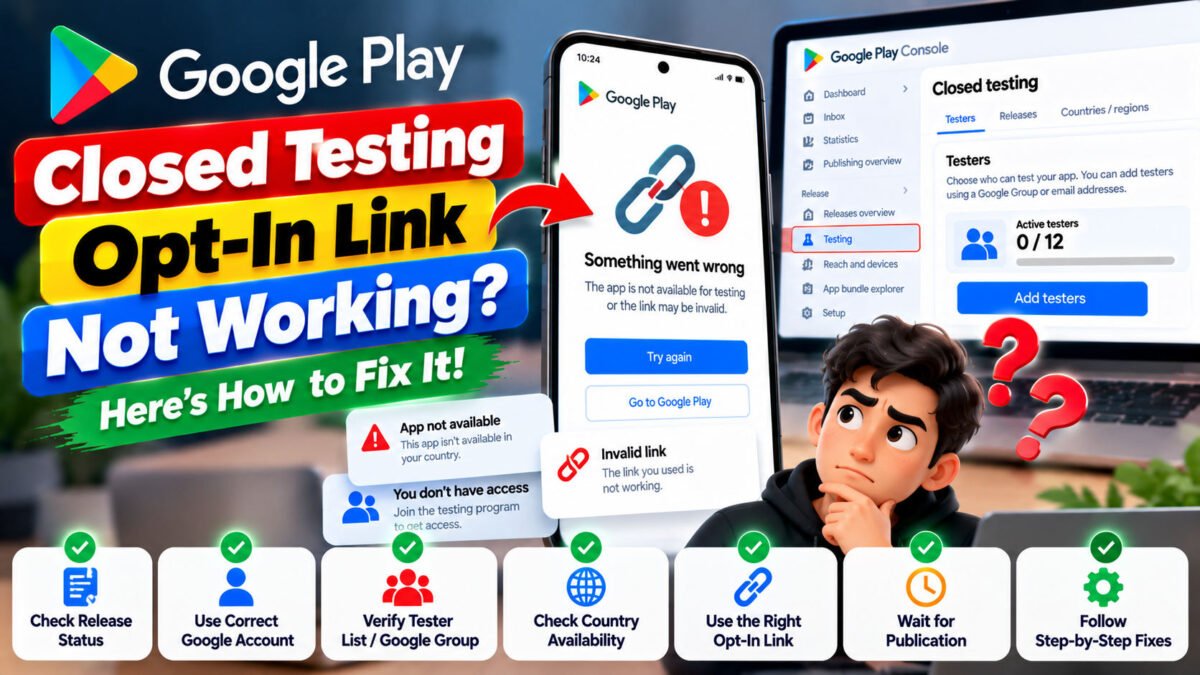
You have created a closed testing track in Google Play Console, uploaded your app, and shared the testing link with your testers. But when they open it, something goes wrong.
Maybe the page says “App not available,” the link opens an error page, or testers cannot see the option to join your test.
If this sounds familiar, don’t immediately create another testing track or upload your app again. The problem may be something much simpler, such as a release that is still pending publication. An incorrect Google Account, a tester list that hasn’t been saved, or country availability settings.
In this guide, we’ll walk through the most common reasons why a Google Play closed testing opt-in link is not working and how to troubleshoot each one.
The steps are based on Google’s published testing documentation and relevant Google Play Developer Community troubleshooting discussions.
Quick Answer: Why Is Your Google Play Testing Link Not Working?
A Google Play closed testing opt-in link may not work for several reasons:
- Your testing release has not been published yet.
- The app or testing track is still pending publication or review.
- The tester is using the wrong Google Account.
- The tester’s email address is not included in the selected email list.
- The tester has not joined the required Google Group.
- The tester’s country is not included in the testing track’s availability.
- The tester is already opted in to an internal test.
- You shared the wrong URL.
- The first testing release has not finished becoming available.
Google’s official documentation confirms that the opt-in link appears only when the app status is Published. Apps in Draft or Pending publication status do not display the opt-in link. Google also notes that a newly published testing track can take several hours to become available to testers.
Official reference: Set up an open, closed, or internal test.
Let’s go through the fixes one by one.
1. Check Whether Your Closed Testing Release Is Published
This is one of the first things you should check.
Creating a closed testing track does not automatically mean your testing release is available to testers.
You might have uploaded an app bundle, configured a tester list, and copied a link, but the release may still be waiting for publication or another required step.
How to check
- Sign in to Google Play Console.
- Select your application.
- Open Test and release → Testing → Closed testing.
- Select the relevant testing track.
- Review the release status and any outstanding publishing actions.
- Complete any required steps and confirm that the release has been published.
Pay attention to the status shown in Play Console. If your app is still in Draft or Pending publication status, the opt-in link may not be available.
If you have only saved your changes without completing the required publishing steps, your testers may not be able to join.
What to do: Complete the outstanding steps and wait until the release is available. Then test the link again.
2. Wait if You Have Just Published Your First Testing Release
Sometimes, everything appears to be configured correctly, but the testing link still does not work immediately.
Google’s setup documentation explains that after publishing an internal, closed, or open testing track for the first time, the test link can take several hours to become available to testers.
This is especially relevant if you have just created your first testing release.
What should you do?
- Confirm that the release has been published.
- Check whether Play Console shows any outstanding actions.
- Give the release time to become available.
- Test the link again after some time.
Avoid repeatedly creating new tracks or uploading identical builds just because the link is not working immediately.
If the link remains unavailable after the release is published and the expected processing time has passed, continue with the checks below.
3. Make Sure the Tester Is Using the Correct Google Account
This is particularly important when a tester has multiple Google Accounts on the same phone.
For example, you may have added tester1@gmail.com to your closed testing email list, but the tester opens the link in a browser signed in to another account.
The tester might then see an error or be told that the app is unavailable.
A Google Play Developer Community discussion from March 2026 describes this exact type of issue: some testers could not access a closed test even though they had been added to the tester list. The recommended checks included confirming the account used in the browser and Play Store, along with country availability.
How to fix it
Ask the tester to follow these steps:
- Open the testing link.
- Check which Google Account is active in the browser.
- Confirm that this is the account included in your tester list or eligible Google Group.
- Open Google Play on the Android device.
- Tap the profile picture in the Play Store.
- Confirm that the Play Store is using the intended Google Account.
- Open the testing link again.
If the tester has several Google Accounts, make sure they do not accidentally switch accounts between joining the test and opening Google Play.
Important: The Google Account used for testing must have access to your closed testing track.
4. Check Your Tester Email List or Google Group
Another common problem is that the tester does not actually have access to the closed testing track.
This can happen if you forgot to select the correct email list, entered the wrong address, or configured a Google Group without adding the tester to it.
Google Play supports two common ways to manage closed-test access: email lists and Google Groups.
If you use an email list
Open your closed testing track and review the Testers tab.
Check that:
- The correct email list is selected.
- The tester’s Google Account email address is included.
- There are no spelling mistakes in the email address.
- Your changes have been saved.
If you use multiple email lists, make sure you have selected the list containing the tester for the relevant track.
If you use a Google Group
Check that:
- The correct Google Group is configured in the testing track.
- The tester has joined the group.
- The tester is using the Google Account associated with their group membership.
- Your Play Console changes have been saved.
For closed tests using Google Groups, Google specifically states that users must join the group before opting in to the test.
You can review the official instructions here:
Manage testers using email addresses or Google Groups.
5. Check the Testing Track’s Country Availability
If the link works for some testers but shows “App not available” for others, check country availability.
Your closed testing track may not be available in the country where a particular tester is located.
For example, you might have invited testers from several countries but configured your testing track to target only a subset of them.
The result can be confusing: one tester can join successfully while another receives an availability error.
How to check country availability
- Open Google Play Console.
- Select your application.
- Navigate to Test and release → Testing → Closed testing.
- Select the relevant track and open its management settings.
- Find the Countries/regions tab.
- Check whether the tester’s country is included in the track’s availability settings.
- Update the configuration if necessary and save your changes.
Google explains that testing-track country availability can be managed through the track’s Countries/regions settings.
Official reference: Distribute app releases to specific countries.
Keep in mind that changing country settings may take time to become effective. If the tester still cannot access the app immediately, allow time for the changes to propagate and then retry.
6. Make Sure You Shared the Correct Testing Link
Google Play testing can involve different URLs, and sharing the wrong one can confuse testers.
For a closed test, you should share the appropriate tester opt-in link from the relevant track in Play Console.
A normal Google Play store listing URL and a testing opt-in URL do not always serve the same purpose.
How to get the correct link
- Open Google Play Console.
- Select your application.
- Go to Test and release → Testing → Closed testing.
- Open the correct testing track.
- Select the Testers tab.
- Find the shareable opt-in link.
- Copy the link and share it with your testers.
The exact layout may vary as Play Console changes.
Google documents the opt-in URL format as:
https://play.google.com/apps/testing/testerpilot.testerscommunity
For example, if your package name is com.example.myapp, the URL format would be:
https://play.google.com/apps/testing/com.example.myapp
This is a format example, not a working link to a real app. Always use the actual link generated or provided for your testing track.
What if the link opens but doesn’t show the join option?
First, confirm that the release is published and the tester has access to the track.
Then verify the Google Account, email list or group membership, and country availability.
If all these settings are correct, allow time for a newly published release to become available.
7. Check Whether the Tester Is Already Participating in an Internal Test
This is an easy-to-miss issue.
Google’s documentation explains that a user who opts in to an app’s internal test is no longer eligible to receive its open or closed test. To access an open or closed test, the user must first opt out of the internal test and then opt in to the other testing track.
This means that if a tester previously joined your internal test, they may need to leave that testing programme before joining your closed test.
What should the tester do?
- Open the relevant testing page.
- If they are enrolled in the internal test, follow the available instructions to leave it.
- Confirm that they are no longer participating in the internal testing programme.
- Open the closed testing opt-in link.
- Follow the instructions to join the closed test.
Do not ask testers to uninstall the app as the first troubleshooting step. Start by checking their testing-track participation and Google Account.
Official reference: Google Play testing tracks and tester eligibility.
8. Check Whether Your Play Console Changes Were Saved
Sometimes the issue is simply an incomplete configuration.
You may have added testers, selected a Google Group, or changed country availability but forgotten to save the changes.
Go back to your closed testing track and review the configuration.
Check that:
- The correct tester list or group is selected.
- The release has been published.
- The appropriate opt-in link is available.
- Your latest changes have been saved.
- No required action remains incomplete.
If you have just updated the tester list, give the change some time to take effect before concluding that the link is broken.
Avoid making multiple unrelated changes at once. Change one setting, save it, and then test again. This makes it easier to identify the actual cause.
9. What If the Link Still Shows “Something Went Wrong” or “App Not Available”?
If you have checked the release status, Google Account, tester list, country availability, and testing-track eligibility, but the problem remains, you may need to investigate further.
Google Play Developer Community discussions show that testers have encountered messages such as “Something went wrong,” “App not available,” and URL errors even after setting up a closed test.
For example, a March 2026 discussion described a closed test where some testers could access the app while others could not. The recommended checks included account matching and country availability.
Another Google Play Developer Community discussion described an opt-in link that was unavailable while the testing release was still awaiting the required review and publication process.
These are examples of real troubleshooting reports, not proof that every similar error has the same cause.
Try this troubleshooting sequence
- Confirm the testing release is published and available.
- Verify that you copied the opt-in link for the correct application and track.
- Confirm that the tester is using the correct Google Account.
- Check the selected email list or Google Group.
- Confirm that the tester’s country is supported by the track’s availability settings.
- Check whether the tester is already enrolled in the internal test.
- Wait for recent publication or configuration changes to take effect.
- Ask another eligible tester to try the same link.
If the link works for one tester but not another, compare their accounts, group membership, and country availability before changing your release.
If the problem affects every tester, focus first on the release status, track configuration, and link itself.
If none of these steps resolves the issue, consult Google Play Console Help or the Google Play Developer Community.
Troubleshooting Checklist
Before asking your testers to try again, use this checklist.
- The closed testing release is published.
- The testing track is configured correctly.
- I copied the opt-in link for the correct track.
- The tester is using the correct Google Account.
- The tester’s email address is included in the selected list, or they have joined the required Google Group.
- The tester’s country is included in the track’s availability settings.
- The tester is not still enrolled in the internal testing programme.
- My latest configuration changes have been saved.
- I have allowed time for the release or changes to become available.
- I have tested the link again after checking the relevant settings.
If you have completed these checks, you should have ruled out many of the most common configuration problems.
Frequently Asked Questions
Why is my Google Play closed testing opt-in link not working?
Common causes include an unpublished testing release, an incorrect Google Account, a missing tester-list entry, an unjoined Google Group, country restrictions, or participation in an internal test. Check these settings before creating another testing track.
Why does my closed testing link say “App not available”?
First, verify that the release is published and that the tester is using an account with access to the test. Then check country availability and tester eligibility. The message alone does not identify a single cause.
How long does a Google Play testing link take to work?
Google says a testing link can take several hours to become available after the first testing release is published. If it remains unavailable, check the release status and tester configuration rather than assuming that waiting will resolve every problem.
Why can some testers join but others cannot?
Different testers may be using different Google Accounts, may not belong to the selected tester list or group, or may be in countries not included in the track’s availability settings. Compare the settings for a working tester and a tester who cannot join.
Do testers need to join a Google Group before opting in?
Yes, if your closed test uses a Google Group for access. Google requires users to join the group before opting in to that test.
Can a tester join a closed test while participating in an internal test?
Google’s documentation states that a user who has opted in to an internal test is no longer eligible to receive the app’s open or closed test. The tester must first opt out of the internal test and then opt in to the closed test.
Should I create a new closed testing track if the link does not work?
Not immediately. First check the existing track’s publication status, tester configuration, and opt-in link. Creating another track without identifying the problem may add unnecessary complexity.
Will fixing the opt-in link restart my 14-day testing period?
Fixing a URL or tester-access configuration does not, by itself, establish that the testing period must restart. For eligible personal developer accounts, Google requires at least 12 testers to remain opted in continuously for the preceding 14 days when applying for production access. If the problem affects tester participation or continuity, review the current requirements in Play Console and Google’s official documentation.
Need Help Organizing Google Play Closed Testing?
If you’re preparing to launch your first Android app, setting up a testing track and coordinating testers can take time.
TesterPilot helps developers organize Google Play closed testing. If you need assistance coordinating testers or understanding the testing process, you can visit TesterPilot.com to learn more about the available service.
Remember that a testing service cannot guarantee production access. Google makes the final decision based on its requirements and review of your app and testing process.
Final Thoughts
When a Google Play closed testing opt-in link stops working, the solution is often found in the release status, tester access settings, or Google Account being used.
Start by confirming that your testing release is published. Then check the correct opt-in link, tester list or Google Group, country availability, and internal-test participation.
Work through the checks one at a time instead of repeatedly uploading your app or creating new tracks.
Once your testers can access the test successfully, encourage them to explore the app and report genuine feedback. That will help you make better use of the closed testing period and prepare your application for production access.
Related Google Play Guides
- Minimum Testers for Google Play Closed Testing
- How to Get 12 Testers for Google Play Closed Testing
- How to Find Testers for Google Play Closed Testing
- How to Add Testers in Google Play Console
- How to Create a Closed Testing Track in Google Play Console
- How to Apply for Google Play Production Access
- Production Access Rejected: How to Fix It